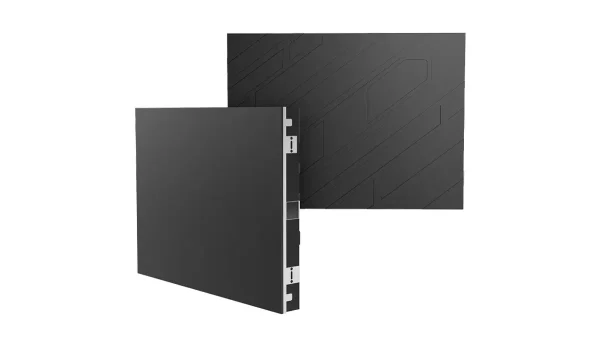
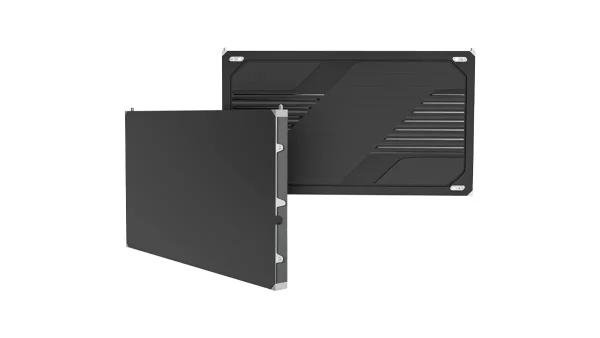
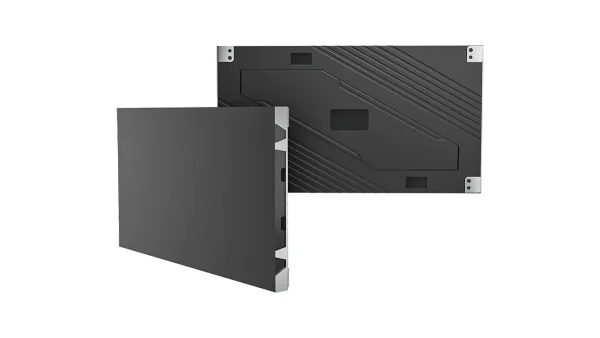
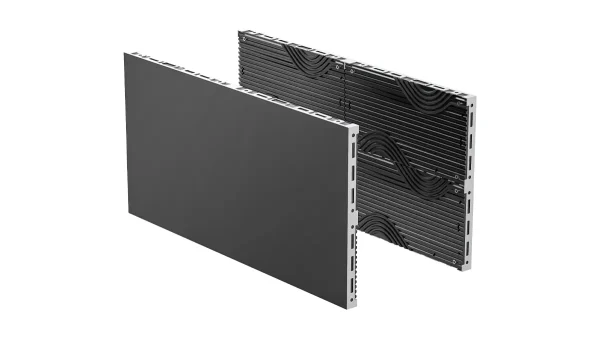
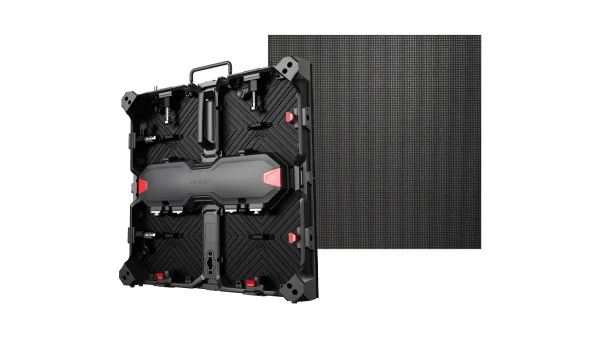
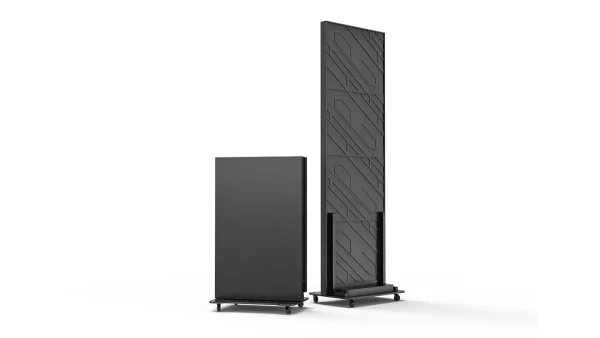
All-in-One COB LED TV
  Flexible LED Displays
  Transparent LED Displays
  Led Poster
  Circular LED Displays
  Creative & Custom LED Displays
 An all-in-one LED display is a direct-view LED screen that combines the display panels, power supply and display processing/control into an integrated system. The LEDs produce the image directly. Speakers, media playback, wireless sharing and interactive functions depend on the model and package.
For a meeting room, its appeal is a large, continuous picture with fewer separate display components to specify and operate. The buying decision still comes down to the room: can people read their working documents, can presenters connect easily, and can the installation be supported over time?
Start with your available wall space, nearest and farthest seats, and the content people actually use. Then compare the screen’s native resolution, connection options and delivery scope. The right combination matters more than the “all-in-one” label.
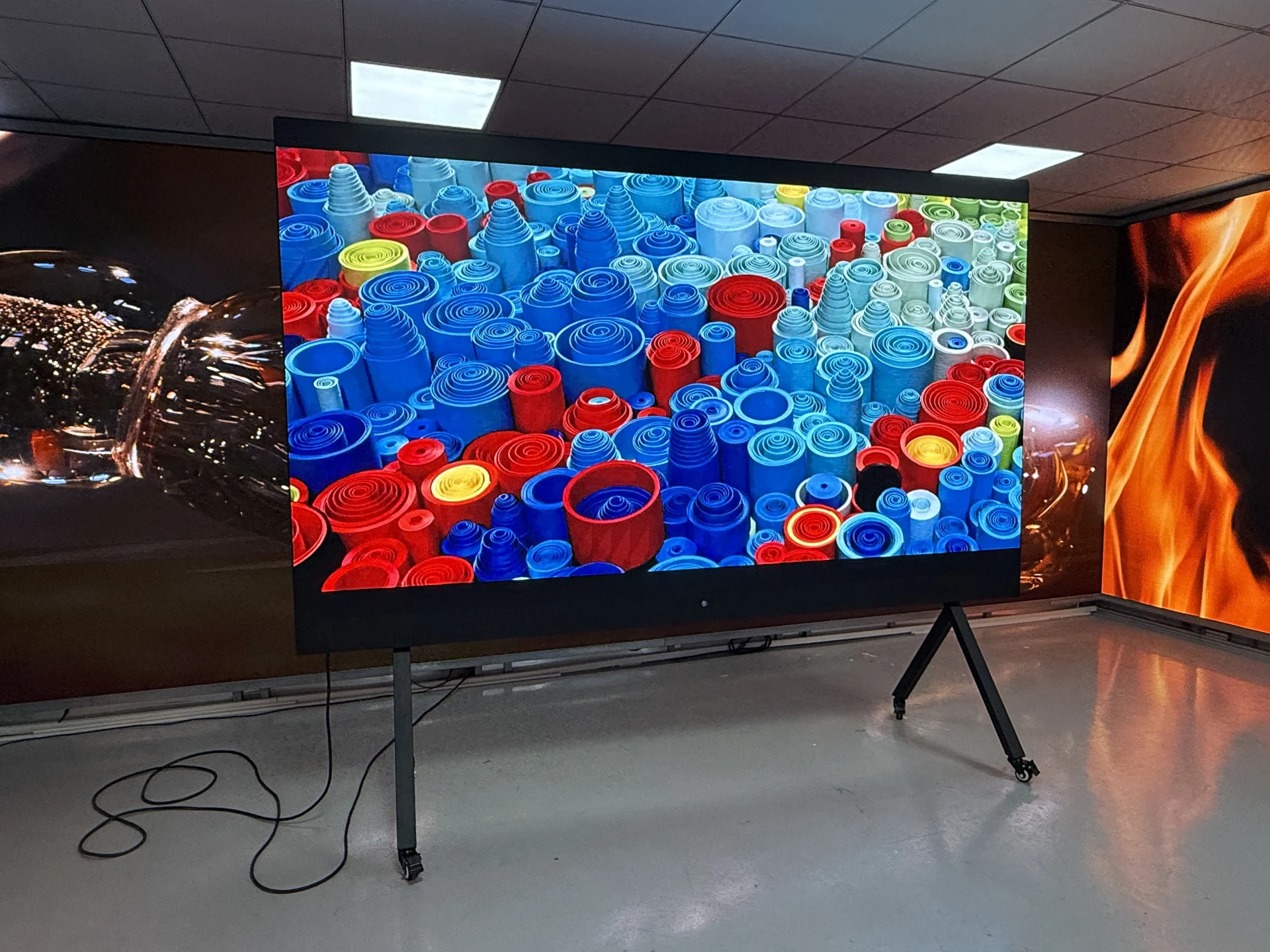
- Check the package: display hardware, mounting, presentation tools and conferencing equipment are separate purchasing questions.
- Check real content: front-row pixel visibility and back-row text readability need different checks.
- Check native pixels: a 4K input specification describes the signal the display accepts, not necessarily its physical pixel count.
- Compare complete quotations: include mounting, accessories, spares, shipping, installation and support responsibilities.
What Does an All-in-One LED Display Include?
The core system brings the LED display, its power supplies and the electronics that process and distribute the image into a coordinated package. This reduces the number of display components an integrator needs to select separately. The screen itself may still consist of serviceable modules and cabinets.
“All-in-one” describes integration. It does not establish one universal equipment list. Before comparing suppliers, separate the proposal into three groups:
- Display package: LED screen, processing/control, power supplies, included speakers and operating controls.
- Presentation tools: wired inputs, media playback, wireless sharing hardware or software, and any specified touch functions.
- Room equipment: mounting or mobile stand, camera, microphones, conferencing computer or room appliance, and network connections.
Ask for a model-specific list showing what is supplied, what is optional and who installs each item. For example, a screen with built-in speakers may handle presentation audio, while a hybrid meeting still needs microphones and a conferencing device appropriate to the room.
Also distinguish direct-view LED from an LED-backlit LCD television. In direct-view LED, the visible image comes from the LED pixels themselves; an LCD uses a liquid-crystal panel with a backlight. That distinction affects how you compare physical size, pixel density and service access.
When Is All-in-One LED the Right Choice for a Meeting Room?
Consider all-in-one LED when your project calls for a large continuous display and a defined set of presentation functions. Boardrooms, training spaces and shared presentation rooms are useful starting points. The deciding factors are the content, room geometry and operating routine, rather than the room’s name or seat count.
| Display approach | A reason to shortlist it | Check before choosing |
|---|---|---|
| All-in-one LED | A large continuous image with integrated display controls. | Native pixels, closest seat, mounting and the included equipment. |
| Large-format LCD | A defined screen size with the pixel density needed for close viewing and detailed work. | Text size from the back row, reflections and access for delivery. |
| Projection | A large image suited to the room’s lighting, layout and screen position. | Ambient light on the screen, lens/throw geometry and maintenance access. |
| Modular LED wall | Custom dimensions, aspect ratios or a more tailored AV system. | Structure, processing, signal design and commissioning scope. |
A small room used for close-up spreadsheet work deserves a different comparison from a deep training room showing presentation slides. Likewise, an unusually wide display area may favour a modular wall. Match the technology to the task before choosing a particular screen size.
If an integrated LED system fits your brief, explore DOIT VISION All-in-One LED display options. For projects still comparing room layouts and technologies, start with the conference room LED display solutions.
Will Text Be Clear from Every Seat?
Check screen size and native resolution together. A larger diagonal tells you how big the screen is; it does not tell you how many pixels form a spreadsheet cell or drawing label. The same content can be easy to follow in a slide presentation and difficult to read when several application windows share the display.
Separate 4K input from native 4K
Native resolution is the physical pixel grid. Full HD is 1920 × 1080 pixels; 4K UHD is 3840 × 2160. A display that accepts a 4K signal may scale that signal to a lower native pixel count. Ask for both specifications and verify the output with your normal content.
Pixel pitch is the distance between adjacent pixel centres. At a fixed screen size, a smaller pitch accommodates more pixels. How useful that is depends on viewing distance, content detail and how the source image is scaled. A pitch-to-distance rule alone cannot establish whether people can read a particular document.
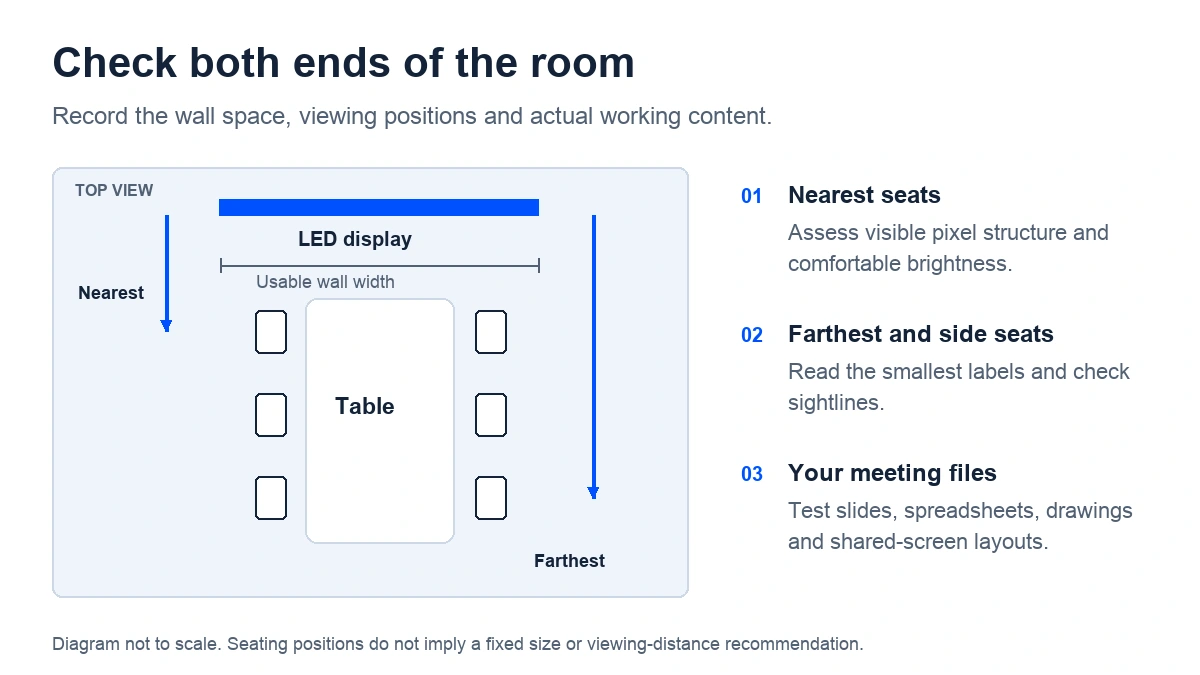
Run a content check before deciding
- Measure the usable space. Record wall width and height, mounting position and the nearest and farthest viewing distances.
- Choose representative files. Include your smallest spreadsheet labels, a typical slide and any drawings or multi-window layouts used in meetings.
- Agree on the demonstration setup. Specify the screen’s native resolution, source settings, room lighting and viewing positions.
- Read from the seats that matter. Check the farthest and side seats as well as the presenter’s position. Review glare, comfortable brightness and sightlines.
Ask for a demonstration with your own files. A scenic video shows colour and motion, but it gives little evidence about financial tables or fine drawing annotations. Camera footage can also introduce exposure and moiré effects, so an in-person check is useful when practical.
Compare screen sizes and native resolutions, then have the proposed configuration checked against your room measurements.
How Does It Connect to Laptops and Meeting Equipment?
Start with the person who will present. Can an employee connect a laptop, switch inputs and play audio without changing several settings? Can a visitor use the same process? Specify that routine before choosing optional collaboration features.
For a wired presentation, check the source device, adapters, cable route and supported signal format at the display input. For wireless sharing, confirm the supported devices, network requirements, any required app or transmitter, and the procedure for a guest user. Test these on the company network rather than relying on a showroom demonstration.
For a hybrid meeting, map the complete system: computer or meeting-room appliance, display, camera, microphones and speakers. Showing a Teams or Zoom meeting from a connected computer describes one signal path. Running an application inside the display is a separate configuration question.
Ask the supplier or integrator to demonstrate a normal meeting: start the system, connect a guest laptop, share a document, switch to a call and finish the session. This gives the IT team a practical basis for accepting the system and training colleagues.
What Should You Check Before Installation and Handover?
Daily operation and first installation are different tasks. An integrated display can simplify routine use while still needing planned delivery, mounting, electrical connections and commissioning.
- Access: obtain the packing list, package dimensions, weights and assembly method. Check doorways, lifts, turns and the final route into the room.
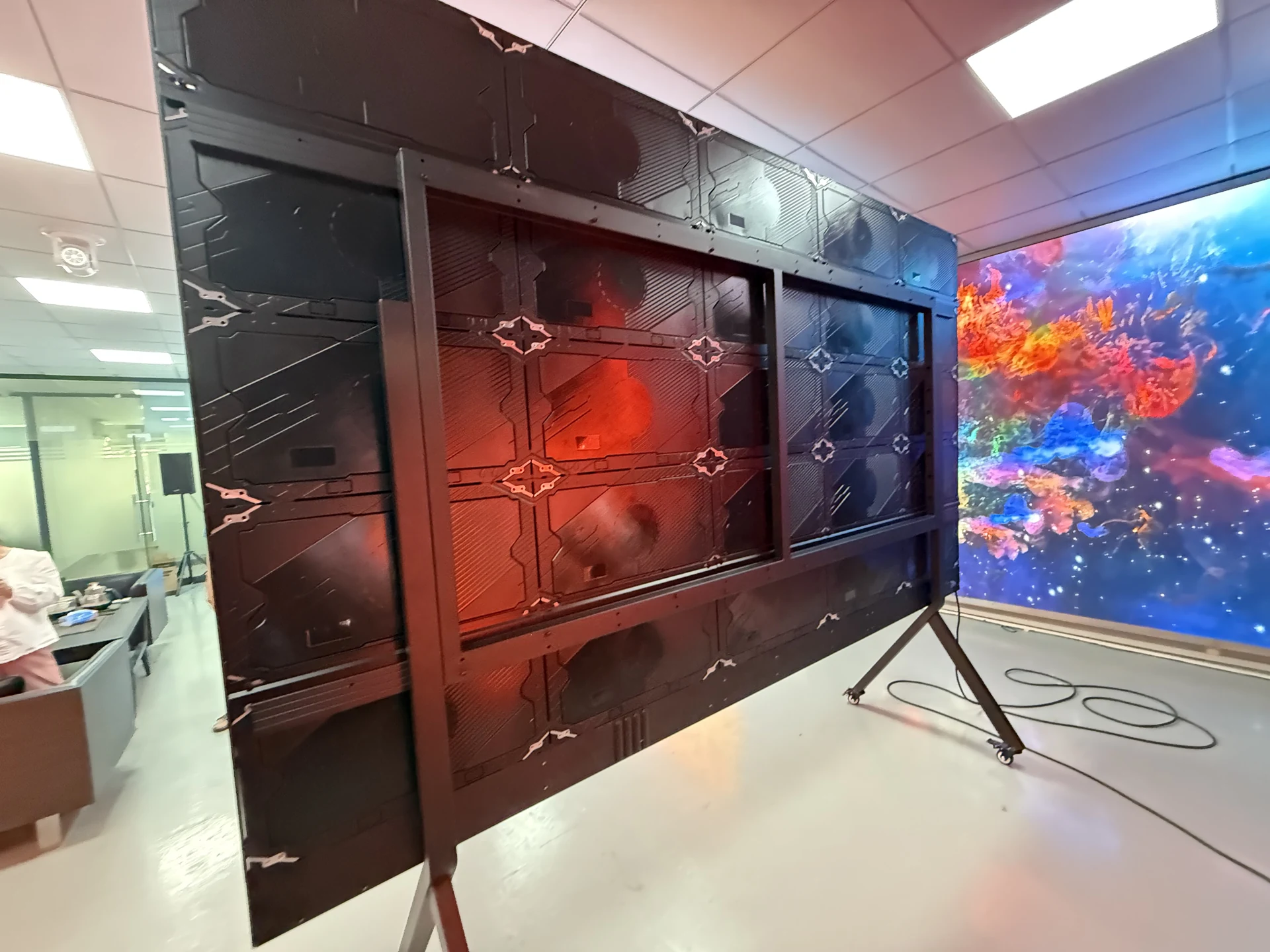
- Mounting: confirm the wall structure, fixing design or approved stand, along with overall dimensions and service access. A wheeled stand also needs a suitable floor and movement route.
- Power and environment: give the installer the confirmed electrical load, supply requirements and ventilation instructions for the selected configuration.
- Commissioning: agree who assembles, aligns, checks the image, configures sources and trains the room operator.
- Maintenance: confirm how modules and electronics are accessed, which spares are supplied, and how replacement parts and support are arranged.
Make acceptance checks part of the purchase: correct native resolution, uniform image, readable working files, functioning inputs, suitable audio and a demonstrated restart routine. The handover should identify the equipment, settings, service contact and maintenance instructions.
For shared rooms, ask whether the display can travel along the intended route in its assembled state. Moving between nearby rooms and repeated transport to off-site events involve different handling and packaging requirements.
What Determines the Total Project Cost?
An all-in-one LED display price becomes useful when it names a configuration and a delivery scope. Screen size, native resolution, panel construction, included processing and accessories all affect the equipment quote. Freight and local installation can change the project total further.
Ask competing suppliers to price the same requirements, then compare these five groups:
- Display system: model, active display dimensions, native pixels and included control/audio components.
- Mounting and presentation equipment: wall hardware or stand, adapters, wireless-sharing accessories and room conferencing devices.
- Spares and service: supplied parts, warranty scope, diagnosis procedure, replacement logistics and responsibility for labour.
- Delivery: packaging, shipping terms, destination, unloading and any local charges applicable to the quote.
- Installation and handover: mounting, electrical work, setup, content checks and operator training.
Check the quote date, validity, quantities and lead-time assumptions. Compare maintenance and operating costs using the proposed equipment’s documented values and your expected usage. A component lifetime figure alone does not establish the service life or total cost of the complete system.
If the configuration is still open, provide a budget range and the room brief. Ask for a suitable base configuration and an explanation of what a higher-resolution alternative changes for your content.
Explore DOIT VISION All-in-One LED Display Options
DOIT VISION’s All-in-One COB LED display range provides an integrated display option for meeting and presentation spaces. The range uses front-serviceable LED construction, with wall mounting and optional mobile-stand configurations.
Start with your room measurements and content requirements. Ask the engineering team to identify suitable screen dimensions and native resolution, then confirm the mounting arrangement, included equipment and delivery scope for that configuration.
For a supplier comparison or internal purchasing proposal, request a model-specific specification sheet, dimensions, connection details and an itemised quotation. These give your AV team and purchasing team a common basis for deciding.
Find a Display for Your Room
Send a sketch or describe the room. Ask for a recommended configuration, the reasons it fits, installation requirements and a quotation with the included items listed.
- Available wall width and height, or room dimensions.
- Nearest and farthest viewing distances.
- Main content: slides, spreadsheets, drawings, video or a mix.
- Installation country and preferred mounting method.
- Your contact details and, if known, budget and project timing.
An approximate measurement or “not sure yet” is enough to start the conversation.