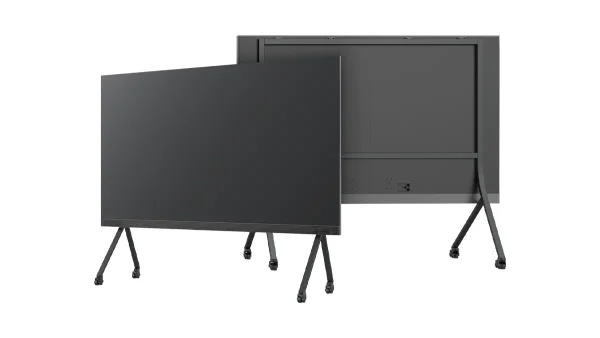
All-in-One COB LED TV
  Flexible LED Displays
  Transparent LED Displays
  Led Poster
  Circular LED Displays
  Column LED Screens
  Creative & Custom LED Displays
 Every All-in-One COB LED TV ships fully assembled and tested — but getting a 108″ to 163″ display from the shipping crate to powered on requires planning. This guide covers mobile stand setup in 30 minutes, professional wall-mount in 2–3 hours, cable management, first-time configuration, and the five most common installation pitfalls encountered across 55+ countries.

- Mobile stand setup takes 30 minutes with basic hand tools and one person (plus assistance for lifting 135″ and 163″ units). The stand adds ~600mm depth behind the screen — factor this into your room layout.
- Wall-mount installation requires 2–4 people and 2–3 hours. The wall must support the display weight: 80kg (108″), 156kg (135″), or 188kg (163″). Never mount on drywall alone — anchor into studs or concrete.
- Before the unit arrives, measure every doorway on the delivery path. 108″ and 135″ units fit through standard commercial doors when tilted. The 163″ unit (3600mm wide) requires a freight elevator or double doors.
- Wired Ethernet is strongly recommended for 4K video conferencing and cloud management. WiFi 6 serves as a backup. Power: 108″ draws ~655W average (1.45kW peak), 135″ ~1.45–1.65kW average, 163″ ~1.65–2.2kW average. The 108″ runs on a standard 110–240V outlet; the 135″ and 163″ need a dedicated circuit sized for their peak draw.
What’s in the Box
Every DOIT VISION All-in-One LED TV ships in a custom wooden crate (flight case available as an optional upgrade) with all components pre-assembled and tested. You receive a turnkey system — no field assembly of LED modules, no separate controller setup, no source-and-mount compatibility headaches.
Standard shipment contents:
- COB LED display panel — fully assembled, calibrated, and tested as a single unit
- Wall-mount bracket kit — with all mounting hardware, bolts, and installation template
- Mobile stand (optional) — heavy-duty steel base with 4 lockable casters
- Android 13 system — pre-installed (4GB RAM + 32GB storage on 2K models; 8GB RAM + 64GB on the 4K 163″), boots directly to home screen
- Built-in stereo speakers — 2×10W (108″) or 2×15W (135″/163″), integrated into the display chassis
- Power cable — IEC C13, 3m length
- Remote control — infrared, with batteries included
- Quick-start guide and installation manual — printed, English
- Flight case — for transport, reusable for future relocation
Every unit runs continuously for 72 hours before crating. During this burn-in, we cycle through full white, red, green, blue, and gradient test patterns at maximum brightness. Dead pixels, color non-uniformity, and power stability issues are caught and resolved at the factory — not at your installation site. This is standard on every All-in-One LED TV we ship.
Delivery and Unboxing Checklist
The most common installation delay has nothing to do with the display itself — it’s discovering that the unit won’t fit through the building’s front door. Run through this checklist before the delivery truck pulls up.
Pre-Delivery: What to Confirm
- Doorway widths on the delivery path. Measure every door, corner turn, and elevator entrance from the loading dock to the installation room. The 108″ and 135″ units fit through standard commercial doors (900mm+) when tilted. The 163″ unit (3600mm wide in its shipping crate) needs a freight elevator or double doors.
- Elevator interior dimensions. Measure height, width, and diagonal clearance. If the elevator is too small, you’ll need a crane or stair carry — plan for this in advance.
- Equipment on hand. Have a pallet jack or heavy-duty furniture dolly available. The 163″ display alone weighs 188kg — use a pallet jack or heavy-duty furniture dolly; a standard hand truck will not handle the width.
- Clear the installation path. Remove furniture, door closers, and protruding objects along the route. Tape down any loose cables or rugs.
Unboxing: Team Requirements
- 108″ — 2 people to unbox and position
- 135″ — 3 people to unbox and position
- 163″ — 4 people to unbox and position
Unboxing sequence: Cut the shipping straps → remove the crate lid → remove the top layer of foam padding → remove the side foam blocks → inspect the display surface and frame for any visible damage or impact marks.
Inspect the crate exterior for dents, punctures, or crushed corners before signing the delivery receipt. Open the case and inspect the display surface. Photograph any damage. Note all observations on the delivery receipt. If the case is severely damaged, refuse delivery and contact us immediately. We insure every shipment, but freight claims require documentation at the point of delivery — not after the driver leaves.
Mobile Stand Setup: 30 Minutes, One Person
If your All-in-One LED TV will move between rooms or serve multiple functions — presentations in the morning, digital signage in the afternoon — the mobile stand is the right choice. Setup requires no tools beyond the included hardware.
Step-by-Step
- Unbox and inspect. Follow the unboxing checklist above. Confirm all components are present and undamaged.
- Attach the mobile stand bracket to the rear of the display. Use the four included M8 bolts. Torque to 25Nm — hand-tight with the included wrench is sufficient. Do not use power tools; over-torquing can deform the mounting plate.
- Lift the display onto the stand base. The 108″ is manageable by 2 people. The 135″ needs 2–3 people. The 163″ requires 4 people. Align the bracket hooks with the stand slots and lower into place.
- Secure the locking pins. Two spring-loaded pins on each side lock the display to the stand. Audible click confirms engagement.
- Connect the single power cable to the rear panel IEC C13 input. Route the cable through the stand’s built-in cable management channel.
- Power on. The system boots to the Android home screen in approximately 30 seconds.
- Connect WiFi and test screen mirroring from a laptop or phone. Confirm audio output through the built-in speakers.
Once positioned, engage all four caster locks by pressing down on each caster lever. The stand adds approximately 600mm depth behind the screen — factor this into your room layout. The front face of the display sits roughly 650mm from the wall behind it.
Wall-Mount Installation: 2–3 Hours, Professional Recommended
The wall-mount option delivers a permanent, flush-to-wall installation with a clean, architectural look. It also requires structural planning, the right tools, and a team. This is not a DIY task for a single person.
Step-by-Step
- Locate wall studs using a stud finder. For concrete or brick walls, mark positions for expansion anchors. The bracket must transfer the full display weight: 80kg (108″), 156kg (135″), 188kg (163″) — safely and permanently.
- Mount the wall bracket at the desired height. For seated viewing (conference rooms, classrooms), position the bottom of the screen approximately 900mm from the floor. For standing viewing (lobbies, trade show booths), position at approximately 1100mm. Use the included paper mounting template to mark drill holes.
- Level the bracket. Use a laser level if available; a standard spirit level works. An out-of-level bracket results in a visibly tilted display — and the weight makes adjustment after mounting extremely difficult.
- Attach the mounting plate to the rear of the display using the included bolts. The plate has pre-drilled holes that match the VESA pattern on the display chassis.
- Lift the display onto the wall bracket. This is the critical moment. Requires 2–4 people depending on size. Use suction cup lifters if available. One person on each side guides the mounting plate hooks onto the bracket rails while the remaining team bears the weight.
- Secure the locking mechanism. Once the display is seated on the bracket, engage the locking tabs or bolts to prevent accidental lift-off.
- Connect power and network cables. The rear panel ports are accessible from the sides once the display is mounted.
- Power on and test all inputs and audio output.

Never attempt wall-mount alone. A 135″ unit weighs 156kg. If the display slips during lifting, the damage is not repairable. Professional AV installers carry liability insurance for a reason. The bracket must anchor into structural framing: wood studs with lag bolts, or concrete/brick with M10 expansion anchors. Drywall anchors alone will fail — the weight will pull any drywall anchor out of the wall, likely within hours of mounting.
Send us photos of your wall and doorway measurements. An engineer will confirm feasibility and recommend mounting hardware — same day, no obligation.
Cable Management and Connectivity Setup
The rear panel of every All-in-One LED TV is organized for clean cable routing — whether you choose a surface-mounted raceway or an in-wall pass-through.
Rear Panel Layout
| Port | Connector | Quantity | Purpose |
|---|---|---|---|
| Power Input | IEC C13 | 1× | AC power, center-bottom rear |
| Ethernet | RJ45 | 1× | Wired network for cloud management and video conferencing |
| HDMI 2.0 | HDMI Type-A | 2× | External video sources — laptop, media player, camera |
| USB-A 3.0 | USB Type-A | 2× | Media playback from USB drive, peripheral connection |
| Audio Out | 3.5mm jack | 1× | External speaker or amplifier connection |
Cable Routing Options
- Through-wall cable pass-through — Cleanest look for wall-mount installations. Run cables inside the wall cavity from the display to a floor-level outlet box. Requires an electrician or AV installer. Check local building codes for in-wall cable rating requirements.
- Surface-mounted cable raceway — Adhesive-backed or screw-mounted plastic channel that runs vertically from the display to the floor. Available in white, black, or paintable finish. Fastest option for existing walls where cutting into drywall is not permitted.
- Floor cable cover — For mobile stand setups and open-plan spaces. Rubber or aluminum cable ramp that protects cables crossing walking paths and prevents tripping hazards.
Network and Power Recommendations
Wired Ethernet is the primary recommendation for any installation using cloud management or 4K video conferencing. WiFi 6 serves as a backup — adequate for casual content playback and wireless screen mirroring, but subject to interference and congestion in dense office environments.
Power requirements: The 108″ runs on a standard 110–240V outlet (15A circuit) — about 655W average and 1.45kW peak at full brightness. The 135″ and 163″ draw substantially more (~1.45–1.65kW average on the 135″, ~1.65–2.2kW average on the 163″, peaking up to 6kW on the 163″ 4K model), so plan a dedicated circuit sized for the peak draw — a 240V circuit where available. Avoid sharing the circuit with other high-draw equipment such as refrigerators, laser printers, or space heaters. The power cable exits from the rear center-bottom of the display.
First-Time Setup and Configuration
Once the display is physically installed and powered on, the initial software configuration takes approximately 15 minutes.
Android Setup Wizard
On first boot, the Android setup wizard walks through: language selection → WiFi network connection → Google account sign-in (optional, skip if using only local media) → time zone and date/time confirmation. The wizard is identical to setting up any Android tablet — intuitive and guided.
Display Settings Calibration
| Setting | Default | Recommendation |
|---|---|---|
| Brightness | 70% | Adjust based on room ambient light. Bright rooms: 80–100%. Dim rooms: 50–70%. Start at 70% and adjust. |
| Color Temperature | 6500K | Standard D65 white point. Keep at 6500K for accurate color in video conferencing and brand content display. |
| Refresh Rate | 3840Hz | Default is optimal. High refresh rate eliminates flicker on camera — critical for video conferencing and broadcast environments. |
App Installation and Cloud Configuration
- Install meeting apps from the built-in app store: Zoom, Microsoft Teams, Google Meet. All three are pre-verified for compatibility with the Android OS version running on the display.
- Configure Novastar VNNOX Cloud if using remote management. Register the device in the VNNOX dashboard using the device serial number (printed on the rear panel label). Once registered, you can push content, schedule playlists, monitor device health, and receive fault alerts from any browser.
- Test all inputs. Connect a laptop to each HDMI port and confirm signal detection. Insert a USB drive with test media files (MP4 video, JPEG image) and verify playback. Test wireless screen mirroring from an iOS device (AirPlay), an Android device (Chromecast built-in), and a Windows laptop (Miracast).
Installation Pitfalls and How to Avoid Them
These five mistakes account for the vast majority of installation problems we see across 55+ countries. Every one is preventable with a pre-installation checklist.
-
Pitfall 1: Not Measuring DoorwaysThe 163″ unit in its shipping crate is 3600mm wide — it will not fit through a standard 900mm door. Measure the narrowest point on the entire delivery path: doorways, elevator doors, corridor turns, stair landings. If any point is narrower than the shipping crate width, arrange a crane lift through a window or removable wall panel before delivery day.
-
Pitfall 2: Mounting on Drywall Without StudsDrywall anchors are rated for picture frames and small shelves — not 80–188kg of display. The bracket must anchor into wood studs (with lag bolts) or concrete/brick (with M10 expansion anchors). If stud spacing doesn’t align with the bracket holes, install a plywood backer board spanning two studs, then mount the bracket to the backer board.
-
Pitfall 3: Wrong Wall Bracket HeightInstall too high and front-row viewers crane their necks upward. Install too low and the back row can’t see the bottom third of the screen. For seated rooms, place the bottom edge at 900mm from the floor. For standing/viewing areas, place at 1100mm. Mark the height with painter’s tape on the wall and have multiple people confirm comfort before drilling.
-
Pitfall 4: No Network CableWiFi works for casual content playback, but 4K video conferencing and cloud-based remote management rely on stable bandwidth. A wired Ethernet connection eliminates packet loss, latency spikes, and WiFi channel congestion — issues that are immediately visible as stuttering video and dropped calls. Run a Cat6 cable to the display location before wall-mounting.
-
Pitfall 5: Power Outlet LocationThe single power cable exits from the rear center-bottom of the display. If the nearest outlet is 3 meters to the left, you’ll have a visible cable stretching across the wall. Plan outlet placement during the room layout phase — ideally directly behind the display or in a floor box within the display’s width. For wall-mount installations, install a recessed outlet behind the display so the plug sits flush inside the wall cavity.
Share your room dimensions, wall type, and preferred mounting method. An engineer — not a sales rep — will send you a detailed installation plan, including required tools and team size, within 24 hours.