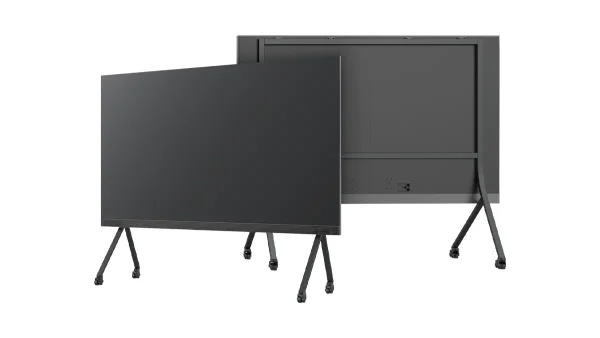
All-in-One COB LED TV
  Flexible LED Displays
  Transparent LED Displays
  Led Poster
  Circular LED Displays
  Creative & Custom LED Displays
 The lowest-maintenance large-format display technology — weekly care takes 30 seconds, module replacement takes 15 minutes, and the LED modules are rated for 17+ years of daily use. Everything a facilities manager or AV technician needs to know, based on factory engineering documentation.

- COB All-in-One LED TVs have the lowest maintenance burden of any large-format display — no projector lamps to replace, no LCD bezels to align, no exposed SMD diodes to damage. The sealed COB surface wipes clean with a damp microfiber cloth.
- Weekly care is a 30-second dry microfiber wipe. Monthly checks: cables, casters, wall bracket bolts. No cleaning chemicals, no glass cleaner, no alcohol — water only. Chemical residue degrades the epoxy surface over time.
- Software maintenance is automated and low-touch — Android 13 OTA updates via WiFi, Novastar VNNOX Cloud for firmware pushes, factory reset available if the system becomes unresponsive. No IT specialist needed.
- LED module replacement takes 15 minutes with basic tools. No calibration required — the system auto-detects new modules. DOIT VISION provides remote video support and dispatches replacement modules within 48 hours during warranty.
- The display is designed for a 10+ year service life in corporate environments. LEDs rated 50,000+ hours to half brightness (17+ years at 8h/day). The power supply is the most likely replacement item — a standard field-service procedure at the 5–7 year mark.
The Reality of LED Display Maintenance
The good news: COB All-in-One LED TVs have the lowest maintenance burden of any large-format display technology. No lamps to replace like projectors. No bezel alignment like LCD video walls. No exposed diodes to damage like SMD LED walls. The sealed COB surface wipes clean with a damp cloth.
If you are coming from a projector-based meeting room — where lamp replacement was a recurring cost and light output degraded noticeably between replacements — the transition to a COB All-in-One LED TV is a step change in reliability. There are no consumable parts in the display path. No filters to clean. No scheduled part replacements during the typical service life.
The bad news: maintenance is not zero. You still need to know what to do when an LED module develops a fault, how to keep the Android system updated, and what constitutes normal versus abnormal behavior over the display’s lifespan. This guide covers both the routine and the exceptional — everything a facilities manager, AV technician, or IT administrator needs to keep an All-in-One LED TV running in a corporate meeting room, training room, or boardroom.
Daily and Weekly Care
Daily: Nothing Required
The display is designed to be turned on and used. There are no startup sequences, no warm-up periods, and no calibration checks needed at the beginning of each day. The Android system boots in under 30 seconds and is ready for wireless mirroring, HDMI input, or built-in app content.
Weekly: 30-Second Inspection
Once a week — perhaps when the cleaning crew is in — wipe the screen surface with a clean, dry microfiber cloth to remove dust. Use the same type of cloth you would use for eyeglasses or camera lenses. For smudges or fingerprints, dampen the cloth slightly with water — no cleaning chemicals, no glass cleaner, no alcohol. The COB epoxy surface is chemical-resistant but chemical residue can build up over time and eventually haze the surface.
Monthly: 2-Minute Check
Once a month, take two minutes to verify the physical installation:
- All cables are secure at both ends — power, HDMI, network
- Casters are locked (mobile stand configuration)
- The display is level — check with a spirit level if you suspect it has shifted
- Wall bracket or stand bolts are tight — retorque if you detect any play
That is the full routine care checklist. If your facilities team runs a monthly AV equipment audit, these four items can be completed in under two minutes per display.
Cleaning the COB Surface Properly
The COB epoxy surface is the display’s protective layer — a single, smooth, sealed panel with no exposed individual LEDs. Cleaning it correctly preserves optical clarity. Cleaning it incorrectly degrades it.
What to Use
- Microfiber cloth — the same type used for eyeglasses or camera lenses. Clean, dry, and lint-free.
- Slightly damp with water only — for stubborn marks, fingerprints, or smudges. Wring out the cloth so it is damp, not wet. No dripping.
What NOT to Use
- Paper towels — scratch the epoxy surface. Wood fibers in paper are harder than you think.
- Glass cleaner or ammonia-based products — degrade the epoxy layer over time. The surface may appear fine after the first few cleanings, but micro-crazing accumulates.
- Alcohol or solvents — can cloud the epoxy surface. Once hazed, the only fix is module replacement.
- Abrasive sponges or scrub pads — scratch immediately. Even “non-scratch” kitchen pads are too abrasive for optical epoxy.
- Power off the display. A dark screen makes smudges and dust easier to see.
- Wipe gently in one direction — not circular motions. Circular wiping can grind dust particles into the surface.
- Let air dry. Do not use a second dry cloth — the epoxy surface dries quickly without streaks.
- Power on. Inspect the surface under normal brightness. If streaks remain, repeat with a slightly damper cloth.
The sealed epoxy encapsulation means the surface is protected against dust ingress and water splashes from any direction. When you clean the screen, you are cleaning the epoxy encapsulation layer, not individual LEDs. There are no gaps, no crevices, and no exposed electrical contacts on the front surface. This is why COB displays tolerate routine cleaning far better than SMD displays — on an SMD screen, moisture from cleaning can wick between LED beads and corrode the bond wires over time. COB eliminates that failure mode entirely.
Software and System Maintenance
The All-in-One LED TV runs Android 13 with a custom launcher optimized for meeting room and digital signage use. Software maintenance is straightforward and requires no specialized IT skills.
Android 13 System Updates
Check for OTA (over-the-air) updates monthly via Settings → System → System Update. Updates include security patches, performance improvements, and occasional new features. The display must be connected to WiFi for OTA updates. The update process takes 5–10 minutes and the system restarts automatically — do not power off during an update. Schedule updates outside of meeting hours to avoid disruption.
App Updates
The built-in app store handles updates automatically when the display is connected to WiFi. Apps for wireless mirroring, content playback, and video conferencing stay current without manual intervention. If a specific app requires a manual update, navigate to the app store and check for available updates under the “My Apps” section.
Novastar VNNOX Cloud — LED Controller Firmware
Firmware updates for the LED receiving card and controller are pushed via the Novastar VNNOX Cloud platform or via USB. These updates optimize color processing, refresh rates, and communication between the Android system and the LED modules. Most firmware updates are non-disruptive and can be installed during normal operation. If a firmware update requires a reboot, VNNOX Cloud will notify you and let you schedule the restart.
Factory Reset
If the Android system becomes unresponsive — persistent freezing, app crashes, or boot failures — a factory reset restores the system to its factory state: Settings → System → Reset Options → Erase All Data. This resets the Android system software only. It does not affect the LED display hardware, receiving card firmware, or calibration data. After a factory reset, you will need to reconnect to WiFi and reinstall any additional apps.
Send a photo of the issue via WhatsApp. Our engineering team will diagnose the problem and guide you through the fix — typically within minutes during business hours.
LED Module Replacement: When and How
The All-in-One LED TV uses a modular design where the display surface is composed of individual LED modules. If a module develops a fault, you replace the module, not the entire display. This is a field-serviceable procedure that does not require returning the unit to the factory.
When to Replace a Module
Replace a module when any of these conditions occur:
- Dead pixels exceeding 0.01% of total pixels on a single module — approximately 80 pixels on a 4K-resolution module. A few isolated dead pixels within this threshold are normal and do not warrant replacement.
- Visible color inconsistency — one module appears noticeably different in color temperature or brightness compared to adjacent modules. This typically indicates a receiving card or LED driver issue on that module.
- Physical damage from impact — cracked epoxy surface, dented frame, or visible deformation.
- Module fails to light entirely — the module is dark while surrounding modules display normally. This usually indicates a power or data connection failure to that specific module.

Replacement Procedure — 8 Steps, 15 Minutes
- Power off the display. Unplug from the wall outlet. Do not attempt module replacement while the display is powered.
- Remove the front bezel/fascia. On most All-in-One models, the bezel is magnetically attached — it snaps off by pulling gently from one corner. No tools required for this step.
- Identify the faulty module. Each module has a unique ID visible from the front when the bezel is removed. The ID is printed on the module frame — note it down for your warranty claim.
- Disconnect the power and data ribbon cables. Gently release the locking tabs on each connector. Do not pull by the wires — grip the connector housing.
- Remove the module. Typically held by 4–6 screws. Use a Phillips #2 screwdriver. Keep the screws — the replacement module may not include new ones.
- Install the replacement module. Align the module with the frame, insert the screws, and reconnect the power and data ribbon cables. Ensure each connector clicks fully into place.
- Reattach the bezel. Align the magnetic bezel and press gently until it sits flush against the frame.
- Power on. The system auto-detects the new module. No calibration, no color matching, no configuration needed. Verify the image is uniform across the entire display surface.
DOIT VISION provides remote video support for any module replacement — point your phone camera at the display and an engineer will walk you through the procedure in real time. Replacement modules are dispatched within 48 hours during the warranty period. We keep modules in stock for all current All-in-One models (108-inch, 135-inch, and 163-inch).
Troubleshooting Common Issues
Most issues have simple causes. Before contacting support, run through this checklist. In our experience, over 70% of support calls are resolved at step one.
| Issue | Likely Cause | Fix |
|---|---|---|
| Screen won’t power on | Power connection | Check cable at both ends. Check circuit breaker. Try a different outlet. |
| No image but screen is on | Input source | Check input source selection. Try a different HDMI cable. Test wireless mirroring as an alternative input. |
| Part of screen dark or showing lines | Module failure | Follow module replacement procedure in Section 05. Contact support for a replacement module. |
| Android system frozen | Software hang | Hold power button for 10 seconds to force restart. If problem persists, perform factory reset. |
| Wireless mirroring not connecting | Network mismatch | Ensure display and device are on the same WiFi network. Restart both the display and the casting device. Check for system updates. |
| No audio | Audio routing | Check volume level. Check audio output setting (internal speakers vs audio out). Test with a different content source. |
Long-Term Reliability: What to Expect Over 5+ Years
For a display technology that sits in a corporate meeting room and is expected to work every time someone walks in, reliability is not a feature — it is the baseline requirement. Here is what the engineering data says about long-term performance.
LED Lifespan: 50,000+ Hours to Half Brightness
The LED modules are rated for 50,000+ hours to half brightness. At 8 hours of daily use, five days a week, that is over 24 calendar years. At 8 hours daily, seven days a week, it is 17+ years. The brightness decline is gradual — roughly 3% per year at typical usage levels — and is imperceptible year to year. The display will not suddenly go dim; it will look as bright and sharp in year five as it does on day one.
Common Failure Points
Like any electronic device with a power supply and active cooling, there are components with finite service lives:
- Power supply — The most likely component to require replacement. Typical service life is 5–7 years of continuous use. Replacement is a standard field-service procedure — the power supply is accessible from the rear panel and uses standard connectors. A spare power supply costs a fraction of the display value.
- Cooling fans — Sealed bearing fans rated for 30,000–50,000 hours. Under normal meeting room usage (not 24/7), fans will outlast the display’s practical service life. They are barely audible — below typical office ambient noise — and are user-replaceable if needed.
Android System Longevity
Like any Android device, the system board may show gradual performance degradation after 3–4 years of accumulated updates and app installations. A factory reset (Settings → System → Reset Options → Erase All Data) restores original performance. The reset clears the Android system partition only — LED calibration data, receiving card firmware, and display settings are stored on separate hardware and are unaffected.
Physical Durability
The aluminum frame and COB epoxy surface do not degrade under normal indoor conditions. There is no yellowing, no delamination, and no warping at meeting room temperatures and humidity levels. The epoxy encapsulation protects the LED chips from oxidation — the primary aging mechanism for exposed SMD LED beads. This is why COB displays maintain color consistency across modules far longer than SMD displays in the same environment.
Warranty and Service Life
Standard warranty: 2 years comprehensive, covering LED modules, power supplies, receiving cards, the Android system board, and the structural frame. Extended warranties are available. The All-in-One LED TV is designed for a 10+ year service life in a corporate meeting room — longer than the typical office renovation cycle. The display will likely outlast the room it is installed in.
Tell us your All-in-One model and what you’re seeing. An engineer — not a sales rep — will diagnose the issue and ship parts within 48 hours if covered under warranty.