 All-in-One COB LED TV
  Flexible LED Displays
  Transparent LED Displays
  Led Poster
  Circular LED Displays
  Creative & Custom LED Displays
 What is VNNOX Standard System?
VNNOX Standard provides remote content management and player control for LED and LCD display systems. It lets users manage both display controllers and LCD multimedia players with ease. The platform is lightweight and designed for efficient content publishing.
VNNOX Standard has intuitive interface that helps users edit and publish content quickly. Users can create content with a WYSIWYG editor and publish it in one click. In addition,They can also monitor screen status in real time and schedule control plans remotely.
VNNOX Standard enables one-stop remote editing, publishing, and screen control. Theredore, It is widely adopted in government offices, enterprises, exhibitions, hotels, and malls.
System Features
Device Compatibility
VNNOX Standard supports various devices, including Taurus series players, Taurus Ultra LED processors, and VPlayer.
Online Media Library
It offers a flexible online media library, available anytime, anywhere.
WYSIWYG Editor
Users can create content easily with an online WYSIWYG editor.
Multiple Media Types
The platform supports many media types such as text, rich text, video, weather, images, documents, web pages, RSS feeds, and streaming media.
Smart Publishing
It enables smart content publishing. Your solutions are delivered over the Internet and played on schedule once downloaded.
Remote Control
Users can control players remotely in real time or based on a schedule, including functions like restart, screen on/off, volume, brightness, and source switching.
Playback Logs
VNNOX Standard automatically generates detailed playback logs with complete data statistics.
Resource Grouping
It allows users to group media, solutions, and players into custom categories for better resource and permission management.
Perating procedur
During player binding:
- Use VPlayer as the client software for synchronous players.
- Use ViPlex Express or ViPlex Handy for asynchronous players.

Login Step
You have registered a VNNOX account
Step1
Go to www.en.vnnox.com and click LOGIN at the top right corner.
Step2
Choose a server node and click OK.
Step3
Select a login method. You can choose:
- Verification code: Enter your phone number or email to receive a login code.
- Password: Enter your account name and password.
Step4
Drag the slider to complete verification and click Log In.
If this is your first login, you will see a prompt to choose a default system.
After selecting it, the system will open automatically the next time you log in.
Workspace Overview
You can explore key VNNOX Standard features in the workspace.
Quick Control
Solutions
Screens
Content
Displays recently uploaded media files. You can check media names, thumbnails, and update times. You can also access the media library or upload new files easily.

Screen Binding
Once players are successfully linked to VNNOX, users can publish content and control the players anytime and anywhere. You can be free from limitations of distance, location, or wiring. To bind a player, VNNOX authentication credentials are required.
Obtaining Screen Authentication Information
After successful registration, VNNOX automatically generates the default authentication.
Step 1 After successful login, choose > Screen Authentication.
Step 2 View and record the authentication information for VNNOX

Binding to Synchronous Players
Prerequisites
- VPlayer is installed.
- The PC with VPlayer installed is connected to the Internet
Operating Procedure
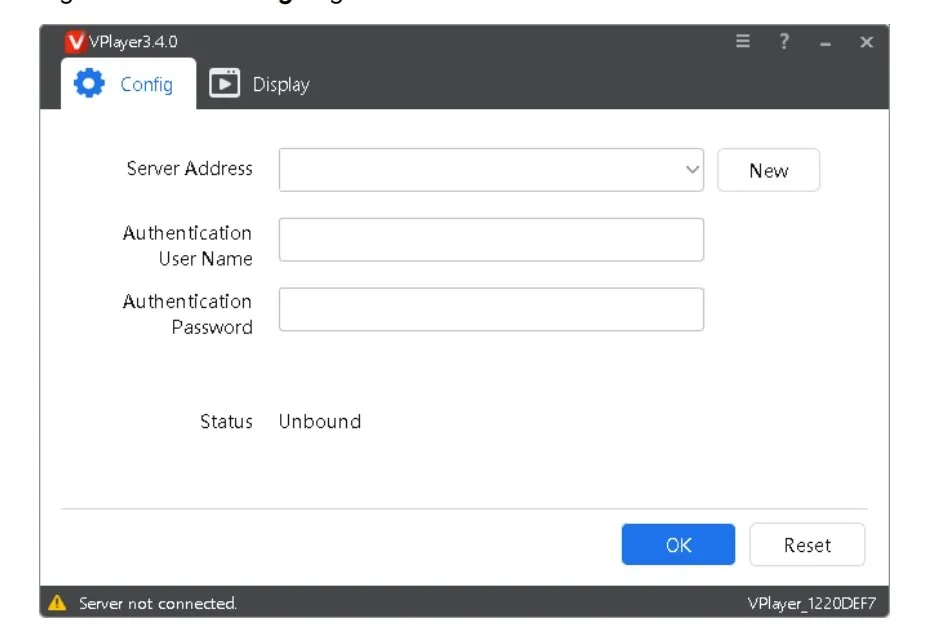
Step1
When adding a server, ensure that the server address exactly matches the one used in VNNOX.
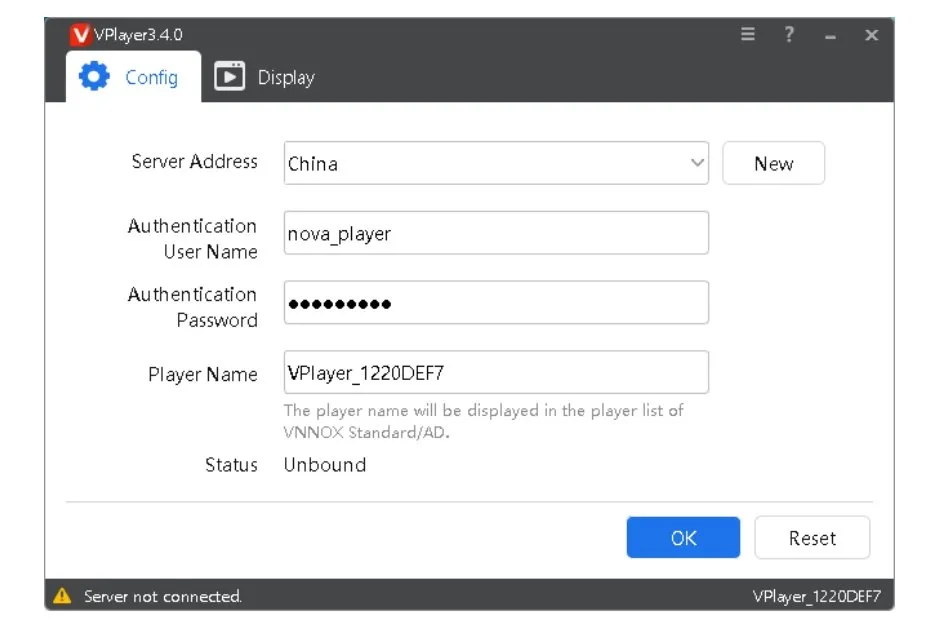
Step2
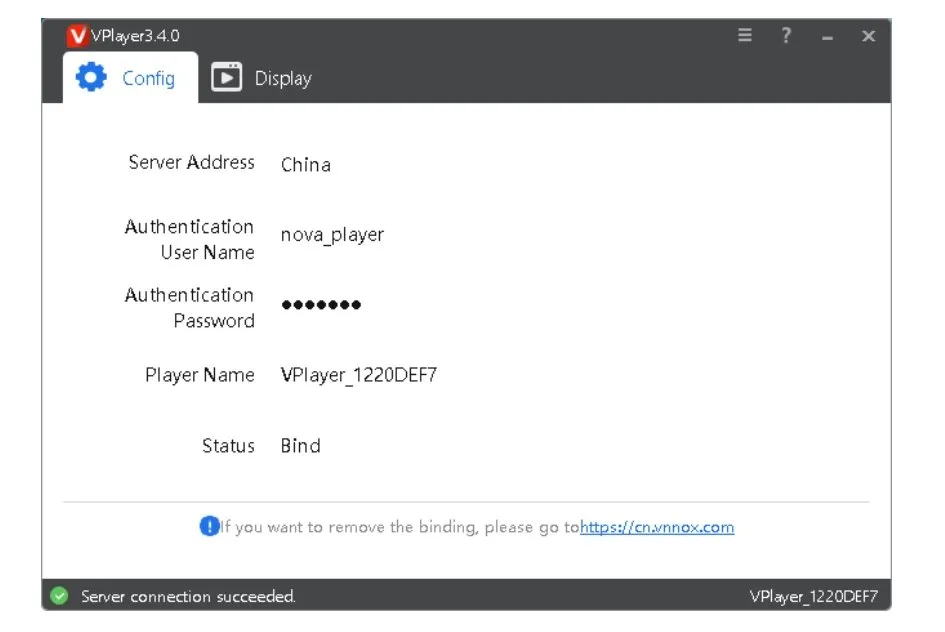
Step3
Once binding is complete, the page shown above will appear.
Conclusion:
If you are looking for a lightweight remote LED display content management system, NNOX Standard is a good choice. If you need to customize other remote LED screen projects or encounter any technical problems, feel free to contact us.